
Windows Server 2016 End of Support: What Ontario Businesses Need to Do Before January 12, 2027
Your servers will keep running after the deadline. The security updates protecting them will not. Here is what changes, what your options are, and how to plan the next 60 days.
On January 12, 2027, Microsoft will release the final security update for Windows Server 2016. After that date, servers running the operating system will no longer receive regular patches for newly discovered vulnerabilities.
For many small and mid-sized businesses, Windows Server 2016 still runs important work behind the scenes: file sharing, user logins, line-of-business applications, print services and databases. These systems are often installed once and rarely revisited until something goes wrong.
That makes this deadline easy to miss. Unlike a laptop, a server does not display a reminder on someone’s screen each morning. If your business still relies on Windows Server 2016, the time to decide what happens next is now, while there is still room to plan rather than react.
If you are not sure which version your servers are running, talk to an IT consultant before the holiday season shortens the timeline further.
What Actually Changes on January 12, 2027
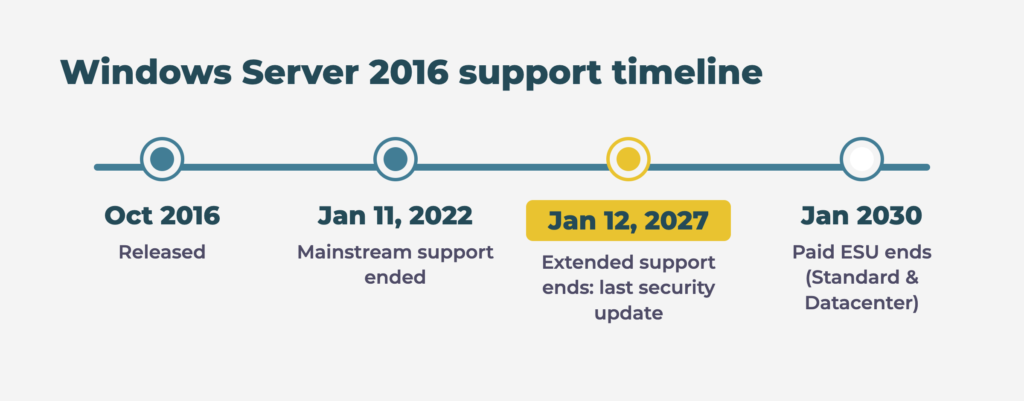
Nothing switches off. Windows Server 2016 will not expire, lock users out or refuse to start. What ends is Microsoft’s support behind it:
- No more security updates. The January 2027 Patch Tuesday is the last one that includes Windows Server 2016. Vulnerabilities discovered afterwards stay open.
- No more bug fixes or technical support from Microsoft for the operating system.
- Vendor support starts to fade. Software and hardware vendors typically stop testing and certifying their products on unsupported operating systems.
The server has actually been on borrowed time for a while. Mainstream support ended in January 2022, and since then it has received security fixes only. January 12 removes that last layer.
The deadline also covers related products. Hyper-V Server 2016 and Windows Storage Server 2016 reach end of support on the same day, and Windows Server 2016 Essentials, a popular edition for small offices, loses its edition-specific features such as Remote Web Access.
The Real Risks of Running an Unsupported Server
A server is rarely just one machine. It often holds the keys to the rest of the network, which is why an unpatched server carries more risk than an outdated workstation.
Security exposure. Attackers watch Microsoft’s monthly updates closely. Once Windows Server 2016 stops receiving patches, every vulnerability found in newer versions becomes a question of whether the same flaw exists in 2016, with no fix coming. Servers that manage logins, such as domain controllers, are especially valuable targets.
Compliance and contracts. Many privacy obligations, client contracts and industry standards expect businesses to keep systems patched. Running unsupported software can make those expectations harder to demonstrate during an audit or a client security review.
Cyber insurance. Insurers increasingly ask about patching practices and unsupported systems. An unsupported server could affect coverage terms or complicate a claim after an incident. Review your policy wording with your broker.
Application compatibility. Business applications, backup agents and security tools gradually drop support for older operating systems. The longer a server stays on 2016, the more likely an important tool will stop being updated or certified for it.
Rushed decisions. The most expensive migrations are usually the unplanned ones: replacing hardware after a failure, or moving data under pressure after an incident. Planning now keeps the choice in your hands.
Your Three Options
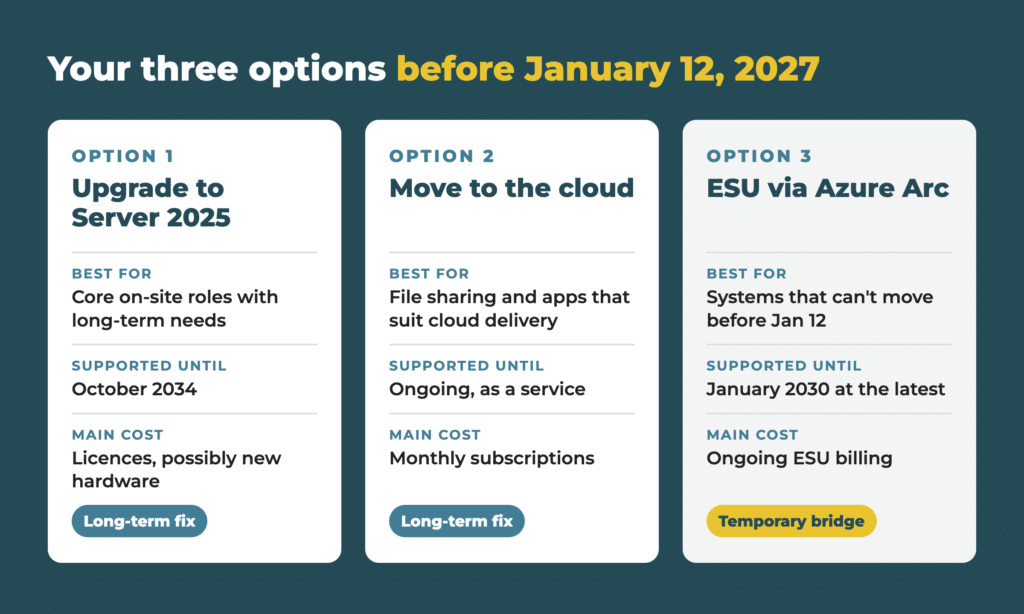
There is no single right answer. The best path depends on what each server does, the age of its hardware and the applications it supports. Most businesses end up with a mix of the three options below.
Option 1: Upgrade to Windows Server 2025
Microsoft describes Windows Server 2025 as its most secure release, with features such as hotpatching and centralized hybrid management. It is also supported the longest: extended support runs to October 2034. Older hardware may not be a good fit, so an upgrade is often paired with new equipment. Skipping straight to 2025 is usually wiser than moving to Windows Server 2019, whose extended support ends in January 2029.
Option 2: Move Workloads to the Cloud
Some server roles no longer need a server in the office at all. File shares can often move to Microsoft 365, while applications can run on Microsoft Azure virtual machines. This reduces hardware to maintain on site, but it requires careful planning around internet connectivity, licensing and ongoing monthly costs.
Option 3: Buy Time With Extended Security Updates (ESU)
Microsoft offers paid ESUs for Windows Server 2016, delivered through Azure Arc. They provide Critical and Important security patches for up to three years, until January 2030, for the Standard and Datacenter editions. ESUs do not include new features or general support, and they are billed on an ongoing basis. Treat them as a bridge while you finish a migration, not as a long-term plan.
Two details are easy to miss:
- Essentials users should check carefully. Microsoft’s ESU documentation names the Standard and Datacenter editions. If your office runs Windows Server 2016 Essentials, confirm whether ESU is available for your setup before relying on it.
- Late enrolment may not save money. Under previous Windows Server ESU programs, customers who signed up after the deadline were billed for the months they missed. Confirm current terms before deciding to wait.
If new hardware is part of the plan, our Procurement Services team can source and configure Windows Server 2025-ready equipment as part of the wider project.
A 60-Day Action Plan Before the Deadline
With the holidays ahead, the working time left before January 12 is shorter than the calendar suggests. This sequence helps you move from uncertainty to a decision for every server.
- Find every Windows Server 2016 system. Include physical servers, virtual machines and any server a vendor installed for a specific application. Record the edition (Standard, Datacenter or Essentials), its hardware age and warranty status.
- Document what each server does. List its roles (file sharing, domain controller, print, database, applications), who depends on it, and which software vendors support it.
- Check application compatibility. Ask each software vendor whether its product supports Windows Server 2025 or a cloud alternative, and what version you would need.
- Choose a path per server. Decide whether each system will be upgraded, moved to the cloud, retired, or temporarily covered by ESU. Not every server needs the same answer.
- Protect the data first. Confirm that backups are current and that a test restore works before any migration begins. Our Remote Backup & Business Continuity services can help make sure nothing is lost along the way.
- Schedule the work around your business. Plan cutovers for evenings or weekends, and avoid month-end or year-end close if finance systems are involved.
- Arrange ESU before January 12 if you need it. For systems that cannot move in time, set up ESU through Azure Arc ahead of the deadline so there is no gap in security updates.
- Monitor after the move. Confirm that patching, backups and alerts work on the new systems. Remote Monitoring & Management keeps that visibility in place long after the project ends.
Why Ontario Businesses Plan Server Migrations With an IT Partner
A server migration touches almost everything: user accounts, shared files, permissions, applications, backups and security tools. Small details, like a mapped drive or a scheduled task nobody remembers creating, are often what cause problems on the first Monday after a cutover.
An experienced IT partner can review your environment server by server and recommend where an upgrade, a cloud move or a short ESU bridge makes the most sense. For more than 33 years, Access has helped businesses across the GTA plan and deliver this kind of change, combining Information Technology expertise, hardware procurement and on-site support through one relationship.
That means one plan, one team accountable for the result, and a migration scheduled around your operations instead of the other way around.
Don’t Let January 12 Make the Decision for You
Windows Server 2016 will keep running after the deadline, but every month without security updates adds risk. The businesses that handle this smoothly are the ones that start with a clear inventory and a plan for each server.
Access can review your current servers, confirm what each one supports, and help you choose the right mix of upgrades, cloud services and temporary ESU coverage before the deadline arrives.
Frequently Asked Questions About Windows Server 2016 End of Support
Will my Windows Server 2016 stop working on January 12, 2027?
No. The server will continue to start and run. It will simply stop receiving security updates and support from Microsoft, which increases risk over time.
How do I check which Windows Server version I am running?
On the server, open Settings or run the “winver” command to see the version. If you have several servers or virtual machines, an IT provider can produce a complete inventory in one pass.
Can I buy Extended Security Updates for Windows Server 2016?
Yes. Microsoft offers paid ESUs through Azure Arc for the Standard and Datacenter editions, with security patches available until January 2030. They are meant as a temporary bridge while you complete a migration.
Should I upgrade to Windows Server 2019, 2022 or 2025?
For most businesses, Windows Server 2025 is the best choice because it has the longest support lifecycle, running to October 2034. Choosing an older version shortens the time until you face the same decision again.
How long does a server migration take?
It depends on the number of servers, the amount of data and the applications involved. A simple file server can move quickly, while systems with specialized software need more testing. Starting the assessment now leaves room for both.